
Creator Studio · Video to shorts
Turn long videos into Shorts & Reels.
Turn long videos into Shorts, Reels and highlight clips. Find your favourite moment, frame it for a small screen, and add the captions you bring.
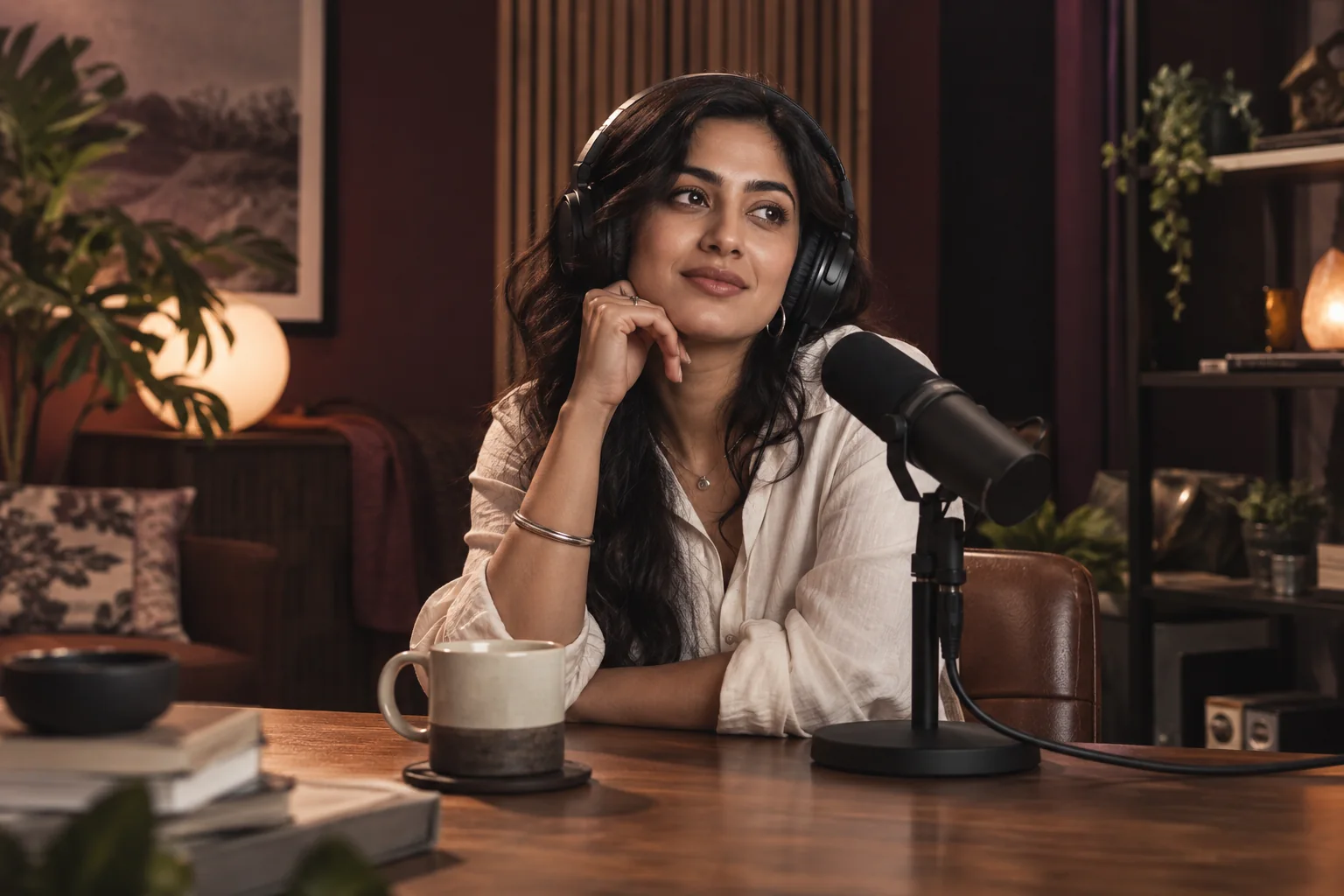 The original
A little inspiration, in motion
Big stories. Small screens.
AI-image motion demos. Animated still images with original music and illustrative text. Try editing any demo for free.
Pick a story. Make it yours.See the difference
Same story.
A fresh perspective.
Keep the part you love. Bring it closer. Give it a frame that belongs on a small screen.
- A shorter cut
- Portrait framing
- Text that stays with the moment
Illustrative sample edit, made from AI artwork. The text is authored, not transcribed speech.
From footage to finished
A clear path
to your next post.
Find a starting point
Get suggestions from visual changes, or add your subtitles to focus on a topic.
Make it feel like you
Fine-tune the cut. Choose your frame. Style the captions you bring.
Take your story with you
Download a finished clip with its audio, or join your picks into a highlight.
Your editing space
Let’s make your next short.
A Creator pass is required to edit your own video. You can try the sample without one.
Keep this tab open while the video is processing.
Choose your video
Start with a recording, an interview, or a day you want to remember.
Up to 1 GiB and 5 hours. Playback and export depend on your browser’s supported video formats.
This is a generated 9-second sample, not one of your files.
Make it your cut
Preview a moment, adjust its start and end, then choose the clips you want.
Original video preview. Play a suggested moment to review it.
Every suggestion is a starting point. Check that the cut keeps the meaning, the full sentence, and the people you want in frame.
Make it ready to share
Choose one moment for a short, or join several in the order they happened.
Export runs in this tab at approximately playback speed. Keep this page in the foreground. MP4 or WebM is offered according to your browser.
Made by you
Your video is ready.
Watch the finished video before sharing. Your source file has not changed.
Find your workflow
Long video to short video, step by step.
Start with a podcast, interview, tutorial or event recording. Review suggested moments, choose portrait, square or landscape framing, and download a short with its original audio.
For a podcast clip, choose one complete answer and trim the pauses around it. For a tutorial Reel, keep the setup and the outcome together. For an event highlight, select several moments and join them in order. Check your 9:16 crop so faces, demonstrations and captions remain visible on a phone.
Try the six-second example: 9:16 crop, supplied SRT and export →
The guide gives you exact cut times and caption text to practise with the free podcast demo, plus the output timings to check in your download. Follow the full steps for your own footage when you are ready. Try the sample free; editing your own video requires a Creator pass.
Need an online video editor for a single clip?
Open the Creator Studio video editor to import existing footage, trim it, change speed or framing, add a text overlay and export with an active Creator pass. Use this Shorts workflow when you want to select several moments or bring an SRT or VTT subtitle file. Both workflows keep the original file unchanged.
Looking for automatic transcription, speaker tracking or AI highlight selection? Compare 12 AI video editing tools and see which workflow fits. This editor uses visual changes and imported captions; it does not transcribe speech or automatically understand the story. Our artificial intelligence guide explains why those capabilities are different.
A few useful things
Before your next great cut.
How does video-to-shorts work?
Choose a video, ask for moments, and review the suggested time ranges. Select one range for a short clip or several for a condensed highlight video. You can change every start, end and title before creating the final video.
Does this automatically find the best story?
This version suggests moments using sampled visual changes. If you add SRT or VTT captions, it can also use their text and your topic words. It does not understand every scene, transcribe speech, follow faces or predict views. Reviewing suggestions is part of the editing process.
Are my videos uploaded?
Video and subtitle processing in this mode stays in this browser. We contact AI Governance Hub to check your Creator pass, but do not send the video or subtitle file with that check. This page does not save the project across visits.
Can I use a five-hour video?
The source limit is five hours and 1 GiB. The file must play in your browser, and large videos can exceed the memory available on a phone. Each selected clip must be at most three minutes; the combined export can be at most ten minutes. Keep the page open and in the foreground during processing.
What languages and captions can I use?
You can bring your own SRT or VTT subtitle file. Check the words and timing before exporting. This mode does not automatically transcribe, translate or dub speech. The selected font and browser must support the characters in your captions.
Is it free, and what can I download?
The generated sample is free to try. Editing your own video requires an active Creator pass with remaining edit time. The video download uses MP4 or WebM according to your browser’s export support. With imported captions, an SRT download is also available for the selected video.
Can I paste a YouTube link?
This mode works with files you choose from your device. It does not download videos from YouTube or other websites. Use footage you own or have permission to edit and share.
Why does exporting take time?
The browser renders the selected video while playing it, so a one-minute output takes roughly a minute plus setup and finishing time. Device speed and video format affect the result. You can cancel processing at any time.