

Make a six-second short you can check.
Use the free podcast demo to practise a 9:16 crop and SRT import without signing in or buying a pass. These two caption lines are original practice text, not a transcript of speech.
- Open the sample. In the free demo gallery, choose Edit the podcast demo. Wait for its suggested cut to appear.
- Supply the captions. Download the practice SRT captions. In the editor, open Have captions?, choose the downloaded file and select Find moments again. The file contains the two lines shown below.
- Set the cut and frame. Keep just one moment selected. Set its start to 00:01 and end to 00:07. Choose Portrait · 9:16, Fill the frame (crop edges) and Rose captions. Start with the crop position at Center, then check what stays visible.
- Create and download. Select Create selected video and keep the tab visible. Watch the result, then use Download video and Download captions (.srt). The video format is MP4 or WebM according to your browser.
1
00:00:02,000 --> 00:00:04,000
Keep one clear idea.

2
00:00:04,000 --> 00:00:06,000
Give it room to breathe.
What should the result look like?
A six-second portrait video with the demo audio. The first caption appears from seconds 1–3 of your output; the second from seconds 3–5. The downloaded SRT should use those output times because the cut starts one second into the source.
The short animation lets you check framing, captions and export on your device. For a long recording, choose your own meaningful start and end times and matching subtitles. Editing your own footage requires sign-in and an active Creator pass with remaining edit time; review Creator passes before buying.
Your first short, step by step.
Choose a video or try a demo
Open Video to Shorts. Pick a podcast, travel or everyday-story sample to explore the editor, or sign in with an active Creator pass and choose your own file. The original file stays unchanged.
The samples are animations made from AI-generated still images, with music and authored text. They demonstrate editing and framing; their captions are not a speech transcript.
Ask for a few possible moments
Choose a target clip length and number of suggestions, then select Find moments. The tool samples visual changes. If you add matching SRT/VTT subtitles, it can use their text and your topic words as well.
Start with a small number so you can review each one carefully. A visual change might be a camera cut or slide change; it does not establish the best part of the story.
Keep one complete thought
Play a suggested moment and adjust its start and end. Include the context needed to understand the opening, and finish the sentence or action. Select one moment for a short, or several to join in the order they happened.
For example, in a cooking video, keep the step and its result together. In an interview, include enough of the question for the answer to make sense.
Choose the frame
Select portrait 9:16, square 1:1, landscape 16:9 or the original shape. Choose Keep the whole picture to preserve the full image, or Fill the frame to crop its edges. With cropping, move the crop position left or right.
Watch the full cut for hands, faces, slides and anything moving out of view. The crop stays fixed; it does not follow a person automatically.
Add and check your captions
Import your video's timed SRT or VTT file, then choose Classic or Rose styling. Check names, spelling, timing and whether the text covers anything important. Choose No captions if you do not want text burned into the video.
This mode uses the captions you provide. It does not automatically transcribe, translate or dub speech.
Create, watch and download
Select Create selected video. Keep the page visible while the browser renders your cut at approximately playback speed. Play the finished preview, then download the video. A matching SRT download is also available when captions are present.
For separate short files, select and export one moment at a time. Selecting several moments creates one joined video. Download your work before clearing the project or closing the page.
Give the moment the right frame.
Portrait framing often suits a single speaker or a close-up. Landscape can preserve a conversation, wide scene or slide. If cropping hides the action, keep the whole picture or shorten the cut to a part that fits.
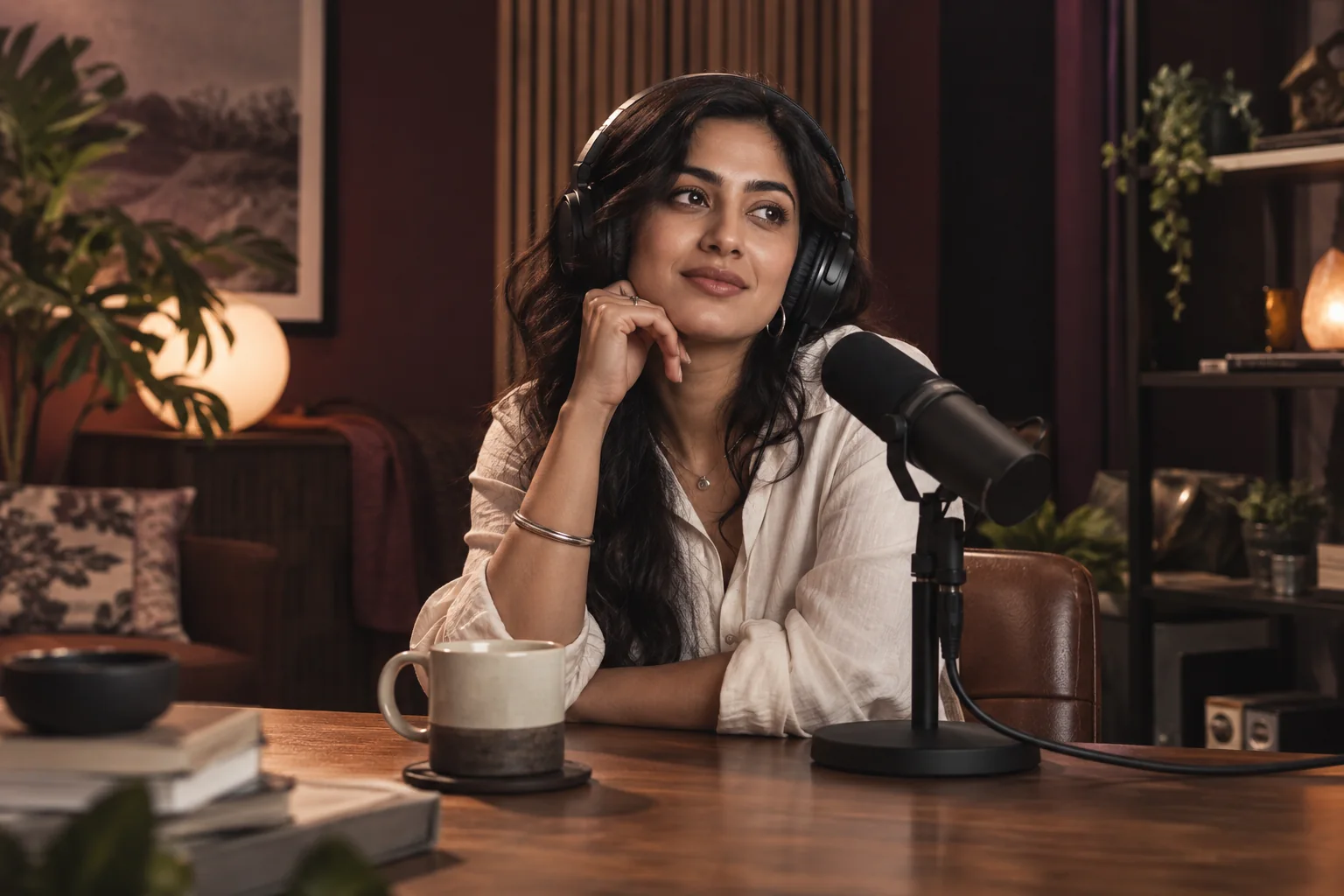
Illustrative crops of AI-generated artwork. Use the finished video preview to check your actual export.
Keep room around captions.
Watch on a small screen, with sound both on and off. Check that captions are readable and do not cover a face, the subject or important text. Social apps may overlay their own controls, so review the uploaded draft before publishing.
Bring the subtitle file that matches.
An SRT or VTT file contains text and the times when it appears. Use a subtitle export from the same version of your source video. If you trimmed the source elsewhere, an older subtitle file may no longer line up.
A simple SRT cue looks like this:
1
00:00:02,000 --> 00:00:05,000
Let the onions cook until soft.
In this example, the line appears from two to five seconds into the source. The editor adjusts the downloaded caption timing to the selected output. Check that words start and finish with the speech.
You can supply text in your own language, including Telugu, Hindi, Tamil or Kannada, but the browser and selected font must render those characters correctly. Imported text support is different from automatic transcription accuracy.
Know what this browser mode does.
| Area | What to expect |
|---|---|
| Source video | Up to five hours and 1 GiB. The file must decode in your browser. Large sources can exceed available device memory; this is an input ceiling, not a five-hour performance guarantee. |
| Selected moments | Up to 10 clips, each no longer than three minutes. Selected ranges cannot overlap. One combined export can be up to ten minutes. |
| Subtitle file | SRT or VTT, up to 2 MiB and 20,000 timed cues. The timestamps must fit the selected source video. |
| Video download | MP4 or WebM, according to the browser's recording support. Export takes approximately the selected playback time plus setup and finishing. |
| Processing and storage | Video and subtitle processing stays in this browser. A request to AI Governance Hub checks your Creator pass without sending those files. The project is not saved across visits. |
| Remote links | Choose a file from your device. This mode does not download YouTube videos, import arbitrary links or upload finished posts to social accounts. |
Start with a short file to check your device. If your browser cannot export, the editor recommends current desktop Chrome or Edge. A responsive mobile page does not guarantee that every phone can render a large video.
If something gets in the way.
My video will not open
Check both duration and file size. If the browser cannot decode the file, export a copy as MP4 with H.264 video and AAC audio, or a supported WebM file. Changing the filename extension alone does not convert a video. Try a shorter copy to rule out device memory limits.
The suggested moment is not useful
Visual changes are starting points, not story judgments. Edit the start and end times yourself. If you have matching timed subtitles, import them and add relevant topic words. Always review the meaning before exporting.
The captions do not match the speech
Confirm that the SRT/VTT came from this exact source version. Correct the text or timestamps in that file and import it again. The editor does not generate a replacement speech transcript.
The person moves outside the crop
Switch to Keep the whole picture, reposition the fixed crop or choose a shorter section with less movement. Automatic face and speaker tracking are not available in this mode.
Export stopped when I switched tabs
Keep the editor visible and the device awake while rendering. A hidden or stalled tab can interrupt browser processing. Return to the page and retry the export; use fewer or shorter clips if the device is struggling.
I expected MP4 but received WebM
The output format follows the browser's supported recorder codecs. Download and play the file to verify it. If another app requires MP4, use a browser that supports the editor's MP4 export or convert your completed WebM with a compatible video tool.
It asks for a Creator pass
Editing your own footage requires sign-in and an active Creator pass with remaining edit time. The included samples remain free to try. Open Creator Studio to review your account and current options.
One last watch before sharing.
- The opening makes sense without the full original video.
- The cut keeps the speaker's meaning and finishes the action or sentence.
- The important person, object and text remain visible throughout.
- Captions are accurate, timed correctly and readable on a small screen.
- The downloaded file has the expected sound, shape and ending.
- You have permission to share the footage, music and people shown.